


iMac Apple Silicon (M-Series) Troubleshooting & Recovery Guide (2026)
Diagnostic Tips for M1, M3 & M4 iMacs, macOS Sequoia Recovery Steps, and iCloud Sync
Apple’s modern 24-inch All-in-One iMac desktops powered by Apple Silicon (M1, M3, and M4 chips) represent the peak of desktop efficiency, ultra-thin architecture, and raw performance. Running on macOS Sequoia, these system-on-chip (SoC) machines eliminate traditional modular graphics cards and replaceable RAM, offering unprecedented stability. However, software glitches, power delivery faults, or display issues can still occur. At Mac Repair in Ramat Gan, led by Hagy Levi, we specialize in diagnosing and fixing modern Apple Silicon hardware and operating system faults.
💬 Having issues with your Apple Silicon iMac?
🔍 Common Apple Silicon iMac Issues & Self-Checks
- No Power or Unresponsive Display: If your iMac fails to power on, check the magnetic Power Delivery cable and external power brick. Unplug all Thunderbolt peripherals, disconnect the power cord for 15 minutes to reset the internal power controller, and reconnect.
- Stuck on Apple Logo or Blank Screen: On M-series iMacs, holding down the power button activates Startup Options. If macOS Sequoia crashes during boot, the system volume or security enclave policy may require recovery or reinstall.
- Display Stains, Lines, or Backlight Failure: The 4.5K Retina display panel is factory-fused to the front glass using ultra-thin adhesive strips. Display lines or flicker indicate logic board video output faults or internal display flex cable damage requiring specialized lab disassembly.
- Unified Memory (RAM) & Storage Considerations: RAM and SSD storage on M1, M3, and M4 chips are soldered directly onto the Apple Silicon die. Faults in memory or NAND flash require micro-soldering board-level repair rather than simple component swapping.
🔄 How to Restore macOS Sequoia on Apple Silicon Macs
Unlike older Intel Macs that used Command + R, Apple Silicon Macs (M1/M3/M4) use a new power button gesture to access Recovery Mode:
- Shut Down Completely: Turn off your iMac completely.
- Press and Hold the Power Button: Press and hold the power button on the back of the iMac. Keep holding it until you see “Loading startup options” on the screen.
- Select Options: Click on Options (gear icon) and click Continue.
- Authenticate: Select an administrator user profile and enter your macOS password.
- Choose Recovery Action: You will enter the macOS Recovery utilities screen, where you can choose:
- Reinstall macOS Sequoia: Reinstalls a fresh copy of the operating system while preserving your personal files.
- Disk Utility: Run First Aid to repair disk permission errors or erase the volume for a full clean install.
- Restore from Time Machine: Recover your complete system state from an external backup drive.
💡 Pro Tip for Unresponsive M-Series Macs: If your Apple Silicon iMac gets stuck in a boot loop or DFU mode, it can be revived or restored using another Mac connected via a Thunderbolt cable using Apple Configurator. Bring it to our lab for instant firmware flashing!
☁️ iCloud Integration & Automated Syncing
On modern Apple Silicon iMacs running macOS Sequoia, iCloud serves as the central nervous system for data security and cross-device sync:
- iCloud Photos Sync: High-resolution photos and 4K videos captured on your iPhone sync instantly to your 24-inch 4.5K Retina iMac screen via Apple Silicon GPU rendering.
- Desktop & Documents Folder Sync: Keep your active work files updated across all Apple devices automatically without manually copying files.
- iCloud Keychain & Passwords: Secure end-to-end encrypted password and passkey syncing integrated into macOS Sequoia system settings and Touch ID keyboards.
🧪 Professional Diagnostic Testing at Mac Repair
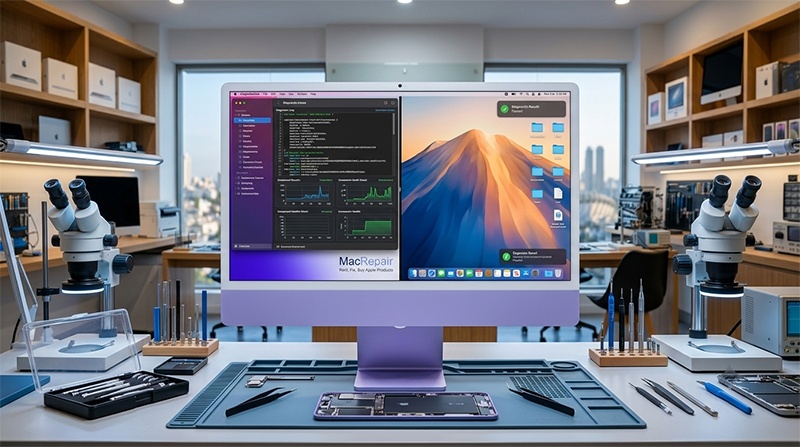
To isolate hardware vs. software faults on Apple Silicon iMacs, our lab utilizes specialized external macOS diagnostic drives, Apple Hardware Diagnostics (AHD), thermal imaging camera analysis, and voltage rail measurements. If your iMac crashes under load, we quickly determine whether the fault stems from logic board power delivery, display driver circuits, or operating system corruption.
Need Professional iMac Repair in Israel?
Contact Mac Repair in Ramat Gan today for expert diagnostic and repair services!
📞 Direct Phone: 050-7192019 (Hagy)
💬 WhatsApp Chat: Send Hagy a WhatsApp Message
✉️ Email: [email protected]
📍 Lab Location: Hagaon Eliyahu St 12 / 129 Chazon Ish St., Ramat Gan, Israel
🕒 Working Hours:
Sun – Thu: 09:00 – 19:00
Friday: 09:00 – 13:30