


Complete Time Machine Backup & Recovery Guide for macOS Sequoia
Protect Your Data, Restore Single Files, or Perform Full System Recovery on Apple Silicon & Intel Macs
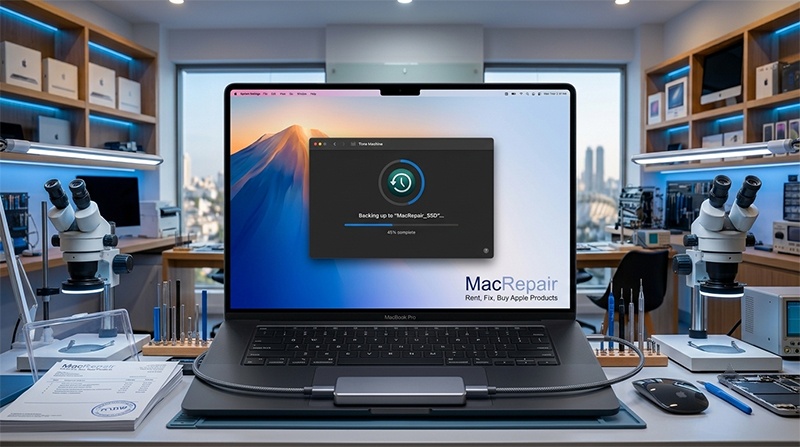
Time Machine is Apple’s built-in, automated backup solution integrated directly into macOS Sequoia. It creates a complete snapshot of your entire Mac—including personal files, photos, system settings, applications, and user accounts. Whether you accidentally delete an important document, suffer a drive crash, or upgrade to a new Mac, Time Machine allows you to step back in time and restore everything seamlessly. At Mac Repair in Ramat Gan, led by Hagy Levi, we always emphasize that a regular backup is your ultimate safety net.
💬 Need help setting up backups or recovering data from a non-booting Mac?
💽 Hardware Requirements & How Backups Work
- External Storage Selection: You need an external USB 3.0 / USB-C drive or Thunderbolt SSD with at least 1TB–2TB of capacity (ideally 2 to 3 times the size of your Mac’s internal storage).
- Initial Full Backup: The first backup takes a complete snapshot of all files, applications, configurations, and system data.
- Smart Incremental Backups: Subsequent backups only save new or modified files. Time Machine automatically makes hourly backups for the past 24 hours, daily backups for the past month, and weekly backups for all previous months.
- Automatic Space Management: When your external drive fills up, Time Machine automatically deletes the oldest snapshots to make room for new ones.
⚙️ How to Set Up Time Machine in System Settings
Setting up automatic backups in modern macOS Sequoia takes just a few clicks:
- Connect your external USB-C drive or SSD to your Mac.
- Click the Apple menu () in the top-left corner and open System Settings.
- Click General in the left sidebar, then choose Time Machine on the right.
- Click Add Backup Disk, select your connected external drive, and click Set Up Disk.
- (Optional & Recommended) Enable Encrypt Backup to secure your personal data with a password.
- Click Done. macOS will format the drive (if needed) and start the initial backup automatically in the background.
💡 Pro Tip: Menu Bar Access
Go to System Settings > Control Center, scroll down to Time Machine, and set it to Show in Menu Bar. This allows you to check backup status or trigger an instant backup by clicking “Back Up Now” anytime!
📂 How to Restore Files or Entire System from Time Machine
Option A: Recover Specific Files or Folders
- Connect your Time Machine backup drive to your Mac.
- Open the folder where the missing file used to be (e.g., Documents or Desktop).
- Click the Time Machine icon in the top menu bar and select Browse Time Machine Backups.
- Use the timeline on the right side of the screen or the up/down arrows to navigate back to the date before the file was deleted.
- Select the file/folder and click Restore to copy it back to its original location.
Option B: Restore Full System (Migration or macOS Recovery)
If you purchased a new Mac or experienced an OS failure, you can restore your complete Mac environment:
- On Apple Silicon Macs (M1/M3/M4): Shut down your Mac. Connect the Time Machine drive. Press and hold the Power Button until you see “Loading startup options”. Select Options > Continue, select an admin user, then choose Restore from Time Machine.
- On Intel-based Macs: Connect the backup drive. Restart your Mac while holding Command (⌘) + R until the Apple logo appears, then select Restore from Time Machine Backup.
- Using Migration Assistant: On a newly formatted Mac or new machine, open Migration Assistant (in Applications > Utilities), select “From a Mac, Time Machine backup, or Startup Disk”, and follow the screen prompts to transfer all apps, files, and user accounts.
Need Professional Mac Data Recovery or Repair?
Visit Mac Repair in Ramat Gan for assistance with backups, drive upgrades, or system restoration!
📞 Direct Phone: 050-7192019 (Hagy)
💬 WhatsApp Chat: Send Hagy a WhatsApp Message
✉️ Email: [email protected]
📍 Lab Address: Hagaon Eliyahu St 12 / 129 Chazon Ish St., Ramat Gan, Israel
🕒 Working Hours:
Sun – Thu: 09:00 – 19:00
Friday: 09:00 – 13:30