


Apple Silicon Mac Boot Troubleshooting & DFU Mode Recovery Guide
Diagnostic Steps for Black Screens, Boot Loops, and System Revives on M1, M2, M3, & M4 Macs
Modern Apple Silicon Macs (powered by M1, M2, M3, and M4 chips) utilize a unified System-on-Chip (SoC) architecture that handles boot firmware, storage encryption, and system security directly through the Secure Enclave. Unlike older Intel Macs, Apple Silicon computers no longer use NVRAM/PRAM key combinations or SMC resets. If your MacBook Pro, MacBook Air, iMac, or Mac mini won’t boot up, displays a black screen, or stops at a startup icon, this guide provides step-by-step DIY diagnostic procedures and DFU restoration instructions. At Mac Repair in Ramat Gan, led by Hagy Levi, we specialize in advanced board-level diagnostics and Apple Silicon firmware recovery.
💬 Having trouble recovering your M-Series Mac or stuck on a black screen?
🔍 Common Apple Silicon Boot Icons & What They Mean
- Exclamation Mark in a Circle (or support.apple.com/mac/restore): Indicates that the system firmware or internal flash controller memory is corrupted. Your Mac requires a DFU Revive/Restore operation using Apple Configurator.
- Folder with a Question Mark: The internal encrypted SSD volume cannot be found or accessed. On Apple Silicon, this usually points to a corrupted macOS installation or an internal NAND flash storage hardware fault.
- Lock Icon (Activation / Firmware Lock): The Mac is protected by Find My / Activation Lock or Mobile Device Management (MDM). You must enter the Apple ID credentials associated with the machine to proceed.
- Spinning Globe Icon: Your Mac is attempting to boot into Recovery Mode over the internet to download diagnostic software or reinstall macOS.
🖥️ DIY Troubleshooting: MacBook Black Screen & Display Testing
If your MacBook powers on (keyboard backlights turn on or you hear a subtle chime) but the built-in screen remains pitch black, follow these diagnostic steps to determine if it’s a display panel issue or a logic board failure:
- Force Power Cycle: Press and hold the Touch ID / Power Button for 10 continuous seconds to force a complete shutdown. Wait 5 seconds, then tap the power button once.
- Flashlight Backlight Test: Turn on your Mac in a dim room. Shine a bright flashlight directly at an angle onto the Apple logo on the display lid or the screen itself. If you can faint-see icons or windows, your screen’s LCD backlight circuit or display flex cable is damaged.
- External Monitor Test:
- Connect a USB-C to HDMI adapter or native USB-C cable from your MacBook directly to an external monitor or TV.
- Connect your official Apple charger to ensure adequate power delivery.
- Close the MacBook lid (Clamshell mode) or boot up while holding the power button. If video appears on the external screen, your logic board is working properly, and only the internal MacBook screen needs replacement.
- Run Apple Diagnostics: Press and hold the Power Button from a powered-off state until “Loading startup options” appears. Press and hold Command (⌘) + D on your keyboard to run built-in hardware diagnostics.
⚡ What is DFU Mode on Apple Silicon & How to Fix It
Device Firmware Update (DFU) Mode is a low-level state that allows you to interface directly with the Secure Enclave and internal bridge firmware of an Apple Silicon Mac without loading the main operating system. It is the ultimate tool for fixing unbootable or soft-bricked M-Series Macs.
Difference Between Revive and Restore:
- DFU Revive: Updates the bootloader firmware and system Recovery OS while preserving all user data and personal files on the internal SSD.
- DFU Restore: Completely wipes the internal SSD, resets the Secure Enclave chip, reinstalls macOS from scratch, and restores the Mac to factory settings.
Step-by-Step DFU Mode Procedure:
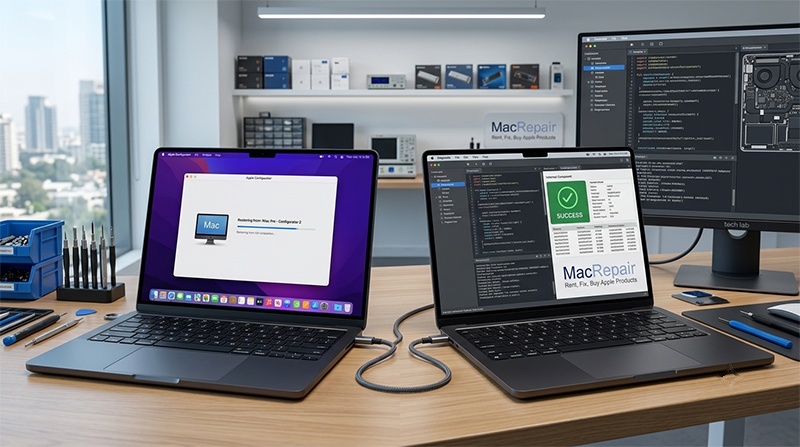
To perform a DFU recovery, you need a second functioning Mac running macOS Big Sur or later, a USB-C data cable (capable of power and data transfer), and the Apple Configurator app installed on the host Mac.
- Connect USB-C Cable: Plug the USB-C cable into the designated DFU port on the target (non-booting) Mac (typically the rear-left USB-C port on MacBooks or specified port on iMac/Mac mini) and connect the other end to the host Mac.
- Open Apple Configurator: Launch Apple Configurator on the host Mac.
- Trigger DFU Key Combination: With the target Mac shut down:
- On MacBooks: Press and hold Right Shift + Left Option ⌥ + Left Control ⌃ while holding the Power Button for exactly 10 seconds.
- After 10 seconds, release the three keys but continue holding the Power Button until a big “DFU” icon appears inside Apple Configurator on the host Mac.
- Execute Revive or Restore: Right-click the DFU icon in Apple Configurator on the host Mac, choose Advanced > Revive Device (to keep data) or Restore (to wipe and re-install).
- Complete Setup: Allow Apple Configurator to download the latest IPSW firmware file directly from Apple servers and flash the target Mac. The target Mac will reboot into the macOS setup assistant upon completion.
⚠️ Hardware Fault Warning: If Apple Configurator fails during the flashing process with error code 75 or NAND communication errors, your Mac has an internal SSD hardware fault or logic board power rail failure that requires professional lab repair.
Need Expert Apple Silicon Hardware Repair or DFU Flashing?
Bring your MacBook or Mac mini to Mac Repair in Ramat Gan for advanced diagnostic testing and micro-soldering service!
📞 Direct Phone: 050-7192019 (Hagy)
💬 WhatsApp Chat: Send Hagy a WhatsApp Message
✉️ Email: [email protected]
📍 Lab Address: Hagaon Eliyahu St 12 / 129 Chazon Ish St., Ramat Gan, Israel
🕒 Working Hours:
Sun – Thu: 09:00 – 19:00
Friday: 09:00 – 13:30