


How to Test Mac SSD Performance Using Blackmagic Disk Speed Test
Accurately Benchmark Internal NVMe Drives & External Storage on Apple Silicon and Intel Macs
Have you noticed your Mac taking longer to boot up, lagging when launching heavy software like Final Cut Pro or Photoshop, or stalling during file transfers? Storage performance is the primary backbone of your Mac’s overall speed. Modern Apple Silicon Macs (M1, M2, M3, M4) rely on ultra-fast, direct-attached NVMe flash storage integrated into the main logic board. Measuring your drive’s sequential Read and Write speeds using professional benchmarking software gives you clear insight into whether your system slowdown is caused by storage degradation, software conflicts, or thermal throttling. At Mac Repair in Ramat Gan, led by Hagy Levi, we use precise hardware diagnostics to restore your Mac’s peak performance.
💬 Experiencing storage degradation or slow performance on your Mac?
📥 How to Download and Run the Speed Benchmark
Follow these simple steps to perform an accurate drive benchmark:
- Open the Mac App Store on your computer.
- Search for Blackmagic Disk Speed Test (a free, industry-standard video utility) and click Get / Install.
- Close all running background applications, cloud syncing services (OneDrive, Google Drive), and video editing suites to get an accurate measurement.
- Launch Disk Speed Test from your Applications folder.
- Click the large central START button. The app will write temporary test files to your drive and measure real-time Read and Write speeds.
📊 Understanding Speed Results & Performance Standards
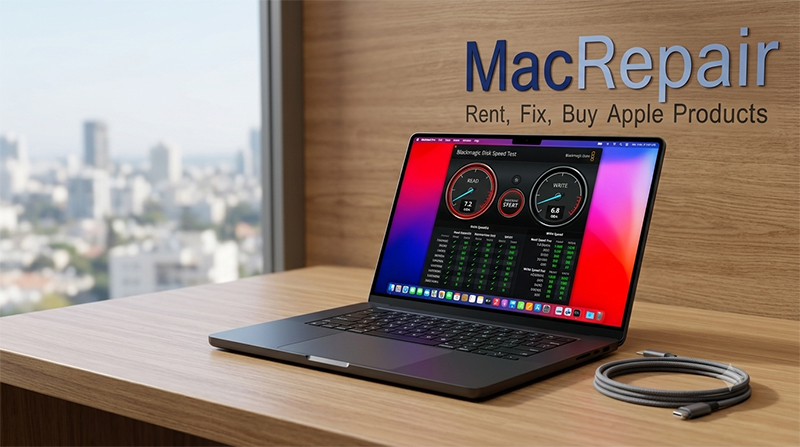
The test displays two main indicators:
- Write Speed (MB/s): Measures how quickly your Mac saves new data, exports video renders, or copies large files to internal storage.
- Read Speed (MB/s): Measures how fast your Mac loads the macOS operating system, launches apps, and opens media files.
Expected Speeds Across Apple Hardware Generations:
- Apple Silicon (M1 / M2 / M3 / M4 Pro & Max): Modern NVMe storage delivers blazingly fast speeds between 2,800 MB/s to over 6,000 MB/s.
- Apple Silicon (Base M2 / M3 256GB Models): Uses single-NAND chip configurations yielding typical speeds of around 1,500 MB/s to 1,700 MB/s.
- Intel Macs with Original Apple PCIe SSDs (2015–2020): Typically reach speeds between 1,200 MB/s and 2,500 MB/s.
- Older Upgraded SATA SSDs (Legacy Intel Macs): Max out at the SATA III limit of roughly 500–550 MB/s.
🛠️ What to Do If Your Disk Speed Drops
- Full Capacity Warning (Above 85% Full): Solid-State Drives require free memory blocks (overprovisioning) to maintain write performance and execute garbage collection. If your internal SSD is nearly full, speeds can drop dramatically by 50% or more. Keep at least 15–20% of your total storage free.
- High Write Endurance (TBW Wear): Flash memory chips have a finite lifecycle measured in Terabytes Written (TBW). Heavy swap file usage (caused by running resource-heavy tasks on low RAM) wears out flash memory blocks over time.
- Data Backup Protection: If your drive speed unexpectedly drops below 300 MB/s on an Apple Silicon machine or exhibits write errors, your internal storage controller or NAND chip may be failing. Perform an immediate Time Machine backup to protect your valuable files!
Need Professional Mac Storage Diagnostics or Repair in Israel?
Visit Mac Repair in Ramat Gan for comprehensive hardware testing, board-level repairs, and data recovery services!
📞 Direct Phone: 050-7192019 (Hagy)
💬 WhatsApp Chat: Send Hagy a WhatsApp Message
✉️ Email: [email protected]
📍 Lab Address: Hagaon Eliyahu St 12 / 129 Chazon Ish St., Ramat Gan, Israel
🕒 Working Hours:
Sun – Thu: 09:00 – 19:00
Friday: 09:00 – 13:30