


How to Install Modern macOS on Older Macs Using OpenCore Legacy Patcher (OCLP)
Breathe New Life Into Unsupported MacBooks, iMacs, and Mac Minis with macOS Sonoma & Sequoia
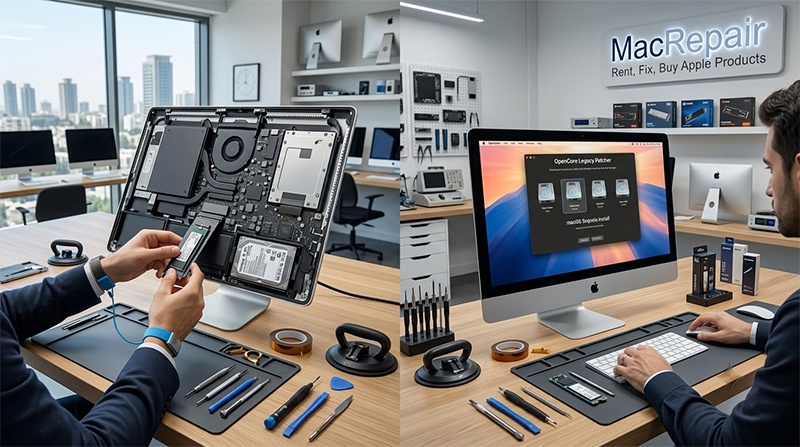
Do you own a perfectly functional older Mac that Apple no longer supports with official software updates? OpenCore Legacy Patcher (OCLP) is an advanced bootloader and patching utility that allows older Intel-based Macs (from 2013 through 2020) to run modern operating systems like macOS Sonoma and macOS Sequoia smoothly and securely. At Mac Repair in Ramat Gan, led by Hagy Levi, we specialize in extending the lifespan of classic Apple hardware through hardware upgrades and bootloader configuration.
💬 Want to upgrade your older Mac to a modern macOS version?
📋 System Requirements & Prerequisites
- Solid-State Drive (SSD) Required: Modern macOS versions are built specifically for fast NVMe/SATA SSDs. Running OCLP on a traditional mechanical HDD will result in severe system lag.
- Minimum 8GB RAM: Modern macOS features require at least 8GB of memory for smooth multitasking and GPU acceleration.
- USB Flash Drive (16GB – 32GB): A high-speed USB 3.0 flash drive to create the macOS bootable installer.
- Full Time Machine Backup: Always back up your personal files via Time Machine before attempting system modifications!
🛠️ Step-by-Step OpenCore Legacy Patcher Setup Guide
Follow these structured steps to build a bootable installer and upgrade your Mac:
- Download OCLP: Download the latest release of
OpenCore-Patcher.appfrom the official GitHub repository onto your Mac. - Download macOS Installer: Launch OpenCore Legacy Patcher, select Create macOS Installer, click Download macOS Installer, and choose your desired OS version (e.g., macOS Sonoma or Sequoia).
- Build Bootable USB: Insert your USB flash drive, choose Flash macOS Installer in OCLP, select your downloaded macOS version, and select your USB drive. Wait for the flashing process to finish.
- Build and Install OpenCore to USB: In the main OCLP menu, click Build and Install OpenCore. Select your USB flash drive as the target drive and install OpenCore to the USB’s EFI partition.
- Boot from USB Installer: Restart your Mac while holding down the Option (Alt) ⌥ key. Select the yellow EFI Boot icon from the boot picker, then select Install macOS.
- Install macOS & OpenCore to Internal Drive: Follow the on-screen installation prompts to install macOS onto your internal SSD. Once complete and booted into the desktop, open OCLP again and select Build and Install OpenCore to copy the EFI bootloader directly onto your internal drive (so you can boot without the USB drive).
- Apply Root Patches: Open OCLP one final time and click Post-Install Root Patch to install legacy graphics drivers, Wi-Fi drivers, and audio patches specifically tailored to your hardware model. Restart when prompted!
⚠️ Important Note on Root Patches: Whenever Apple releases minor macOS security updates, you must rerun the Post-Install Root Patch in OCLP after updating to ensure Wi-Fi and graphics acceleration continue working seamlessly!
🚀 Why Upgrading iMacs (2013–2019) to an SSD is Essential
Many 21.5-inch and 27-inch iMac models produced between 2013 and 2019 were originally shipped with traditional mechanical SATA hard drives (HDD) or slow 1TB Fusion Drives (which combine a tiny SSD with a slow mechanical disk). Mechanical drives read data at roughly 80–100 MB/s, whereas modern high-speed Solid-State Drives (SSDs) operate at speeds up to 550 MB/s (SATA) or 3,000+ MB/s (NVMe PCIe).
⭐ Key Benefits of Upgrading Your iMac to an SSD:
- Instant Boot & App Loading: macOS boots up in under 15 seconds, and applications launch instantly without spinning beachballs.
- 100% Silent & Cooler Operation: SSDs have zero moving mechanical parts, producing no buzzing noise, minimal heat, and zero vibration.
- Maximum Stability & Lifespan: Traditional hard drives physically wear out after 4 to 5 years of thermal stress. SSDs remain fast and reliable for many years.
- Prerequisite for Modern macOS (OCLP): Modern operating systems demand fast random read/write speeds that only an SSD can deliver. Upgrading an SSD on a 2013–2019 iMac paired with OpenCore Legacy Patcher turns a slow machine into a blazing-fast workstation!
Need Professional iMac SSD Upgrade or OCLP Setup in Israel?
Bring your Mac to Mac Repair in Ramat Gan for professional glass-removal SSD installation and OS patching!
📞 Direct Phone: 050-7192019 (Hagy)
💬 WhatsApp Chat: Send Hagy a WhatsApp Message
✉️ Email: [email protected]
📍 Lab Address: Hagaon Eliyahu St 12 / 129 Chazon Ish St., Ramat Gan, Israel
🕒 Working Hours:
Sun – Thu: 09:00 – 19:00
Friday: 09:00 – 13:30